3R – One of the Best SEO Companies in Dublin
June 15, 2021
Create New Account/Property in Google Analytics
July 2, 2021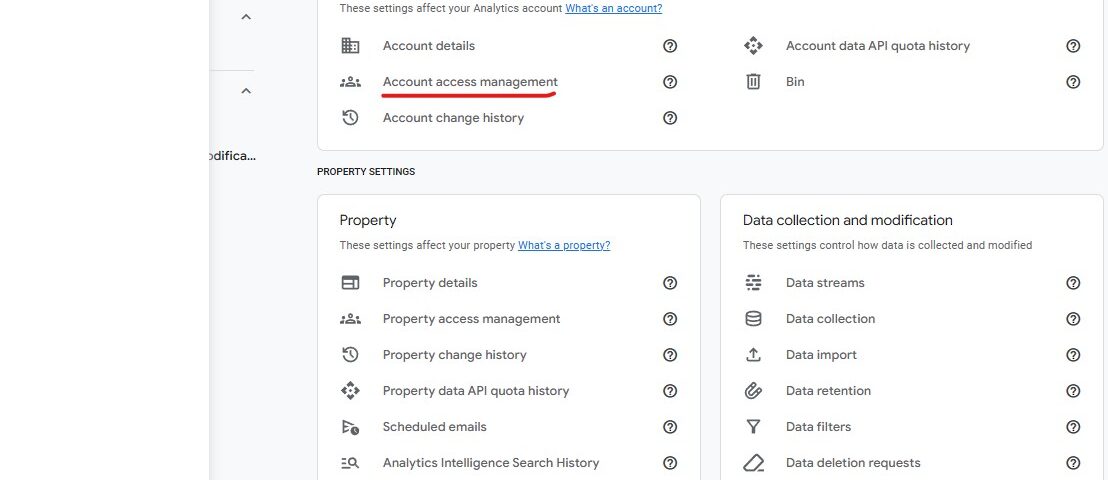
Step 1: Sign in
- Go to https://analytics.google.com
- Log in with the Google account that has Admin access to the property.
Step 2: Go to Admin settings
- In the bottom-left corner, click the gear icon ⚙️ (Admin).
- You’ll see three columns:
-
- Account
- Property
- Product links

Step 3: Choose the correct level
You can add users at either:
- Account level – gives access to all properties in the account.
- Property level – gives access only to a specific property.
Click “Account Access Management”.
Step 4: Add the new user
Click the blue “+” button (top right).
Choose “Add users”.
Enter the user’s email address (must be a Google account, e.g. example@gmail.com).
Turn on “Notify new users by email” if you want them to get an invitation.
Step 5: Assign admin permissions
Under Permissions, tick:
-
Viewer (default)
-
Editor (for editing)
-
Analyst (for creating reports)
-
Marketer (optional for linking Ads etc.)
-
Administrator (this gives full control, including user management)
For granting access to 3R please ensure Administrator is turned on.
Step 6: Save
Click Add (top right).
The user will now have admin access and receive an email invitation.